
We’ve developed a set of intuitive tools to help you showcase your talents, expand your network, and make the most of your membership.
To help you get started and make the most of your experience, we’ve prepared this simple guide.
Profile
You can access your profile by selecting My Dashboard after logging in, or by navigating to the Members Area if you’re already logged in.
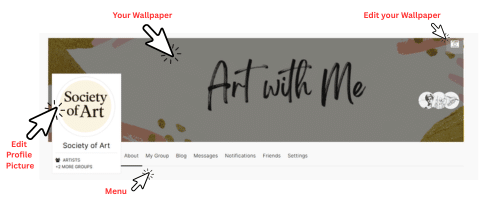
Your Dashboard looks like the image above and is divided into three main sections: your editable profile picture, your editable wallpaper, and the menu.
Profile Picture
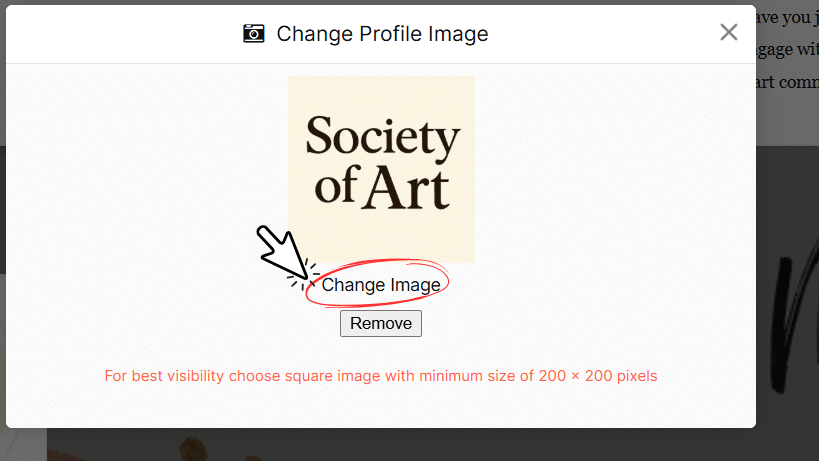
To change your profile picture, first click on your current profile photo. Then select Update Image. A new window will appear – simply click on Change Image and choose the new picture you’d like to use.
For best visibility choose square image with minimum size of 200 x 200 pixels
Wallpaper
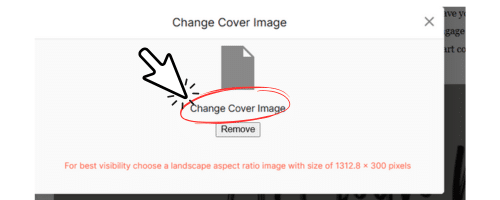
To change your Wallpaper / Cover Image, click on the top right corner of your wallpaper / cover image, then update image and in the new window click on Change Image
For best visibility choose a landscape aspect ratio image with size of 1313 x 300 pixels
Menu
Use the menu to navigate to the following areas:
About
From this section, you can showcase yourself to the creative community and share everything you’d like others to know about your work, skills and experience.
Click Edit Profile and add the information you’d like to highlight about your professional journey.
My Group
From My Group, you can expand your network by connecting with people in the same profession as you.
Click on the title of your group to discover and connect with other members who share your professional background.
Blog
From the Blogs menu, you can add a new blog or create one from scratch. This is your space to share your expertise. You can write about the topics you know best. Share your insights, experiences, and practical advice to help others learn, grow, and be inspired.
Messages
From this section, you can send and receive private messages with other members.
To start a conversation, visit the profile of the member you want to contact and click Message.
Notifications
The on-site notification system keeps you updated on the activities of your connections / friends.
You’ll be notified about new blog posts, new friends, and other relevant updates, so you never miss what’s happening in your creative network.
Friends
In this section, you can view your connections, befriend other users, and build a broad network of profiles related to your interests.
To connect with someone, visit their profile and click Add Friend.
Leave a Reply